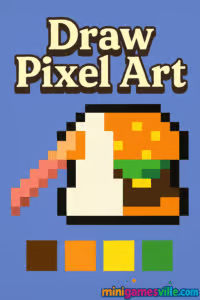
Ready to get creative? Click the big Play button above to start Draw Pixel Art on minigamesville.com. Draw Pixel Art is a relaxing, creativity-first browser game where you paint tiny squares into characters, icons, and retro scenes. Jump in to sketch pixel-perfect sprites, doodle fan art, or practice color palettes, all online and unblocked right in your browser. Whether you are new to pixel art or an 8-bit veteran, Draw Pixel Art on Minigamesville gives you a clean grid, intuitive tools, and instant results. Create, share, and unwind in minutes, then come back anytime for another bite-size art session.
About Draw Pixel Art
Draw Pixel Art is a lightweight pixel art editor disguised as a game, built for quick creativity and zero friction. The grid-based canvas makes it easy to plan shapes, fill areas, and test palettes without complex software. You focus on drawing, not menus. This online experience is ideal for learning pixel fundamentals, prototyping game sprites, or simply relaxing with a digital sketchbook that works in any modern browser.
History of Draw Pixel Art
Pixel art rose with classic consoles and early PCs, and it never left. Web-based pixel editors made the format accessible to everyone, and Draw Pixel Art carries that spirit into a fast, friendly browser game. Its purpose is simple: remove setup pain and let you place pixels right away, whether you are on desktop at home or tapping on a phone during a quick break.
Style & Vibe
Minimal UI, bold colors, and a clean grid keep your art front and center. The vibe is calm and creative, perfect for cozy sessions, daily practice, or social sharing.

Gameplay in Draw Pixel Art
The gameplay loop is delightfully simple. Choose a color, place pixels, and watch your idea appear block by block. Toggle the eraser to clean edges, use the fill tool on larger shapes, and experiment with shading using lighter and darker tones. The challenge is self-made: recreate a favorite character, speed-draw a tiny landscape, or build a tileset for a future platformer. Draw Pixel Art rewards patience and experimentation, and every session leaves you with something to show.
Game Modes
- Free Draw: The default sandbox for unlimited creativity on a grid.
- Preset Grid Sizes: Pick smaller canvases for icons or larger grids for detailed scenes.
- Guided Practice (when available): Recreate simple shapes to master symmetry and shading.
How to Play
- Press Play above to launch Draw Pixel Art on minigamesville.com.
- Select a grid size and pick your base color.
- Click or tap tiles to place pixels, switch to eraser to fix lines, and use fill for big areas.
- Add highlights and shadows with lighter and darker tones to create depth.
- Save or screenshot your artwork, then start a new canvas for your next idea.
Controls
- Mouse: Left click to draw, right click or eraser to remove, scroll or UI buttons to zoom if supported.
- Touch: Tap to paint, long-press for color pickers or tool menus where available, pinch to zoom.
- Keyboard: Common shortcuts include B for brush, E for eraser, Z for undo, Y or Shift+Z for redo when supported.
Device Compatibility & Browser Support
Draw Pixel Art runs on modern browsers like Chrome, Edge, Firefox, and Safari. No downloads, no sign-ups, just instant art making. For best performance, keep one tab for the game, enable hardware acceleration, and update your browser.
Mobile vs. Desktop Gameplay
On mobile, tap-to-draw feels natural and portable. On desktop, a mouse gives you crisp lines and faster detailing. Both deliver the same creative results, so pick what fits your style.
Can I Play Offline?
This version is played online in your browser, so an active internet connection is required for loading and saving through the site.
Can I Play Unblocked?
Yes, Draw Pixel Art is a browser game hosted on minigamesville.com. Most school or work networks that allow educational or casual gaming sites should load it. If your network restricts games, try a personal device or a different connection.
- Browser: Play Draw Pixel Art on minigamesville.com.
- Mobile Apps: There is no official mobile app with the exact same name from this web version. Want a close match for on-the-go pixel sketching? Try 8bit Painter:
Tips & Tricks
Beginner Tips
- Start small. A 16×16 or 24×24 canvas teaches clean shapes and readable silhouettes.
- Block colors first, add details later. Big shapes before tiny highlights.
- Keep a 3-shade palette per color: base, shadow, highlight.
- Mirror symmetry. Build one half, then match the other for characters and icons.
- Zoom out often to check readability at game-like sizes.
Advanced Strategies
- Dither for gradients. Alternate two colors in a checker pattern to fake smooth shading.
- Hue shift shadows. Push shadows toward cooler hues and highlights toward warmer ones.
- Use negative space. Leave pixels empty to imply edges and reflections.
- Create a tileset. Reuse 8×8 or 16×16 tiles for terrain and UI icons.
- Design a limited palette challenge to sharpen style consistency.
Features
- 🎨 Grid-based canvas for clean sprite work
- 🧰 Simple tools, brush and eraser with quick switching
- 🪄 Fill areas fast to shape icons and tiles
- 🌈 Handy color palette for quick shading
- 🔍 Zoom controls for pixel-perfect detailing
- 💾 Easy screenshot or save workflow
- ⏱️ Instant load, no installs or sign-ups
- 📱 Works on mobile and desktop
Unlockables & Secrets
Keep an eye on grid size options and palette presets. Small changes can unlock big improvements in clarity and style. Try custom palettes like Game Boy greens or 4-color challenges for a retro vibe.
Cheats & Mods
There are no cheats for Draw Pixel Art, and external mods are not supported. Your best power-up is a smart workflow: block, shade, polish, and save.
Walkthrough Summary
Pick a 24×24 canvas, sketch a simple mascot, fill base colors, then add a darker shadow on the lower-right edges and a lighter highlight on the upper-left. Zoom out to check readability. Export or screenshot, then iterate on a new version with bolder contrast.
Scoring, Records & Progression
There is no score, just satisfying progress. Track your growth by saving batches of art with version numbers and consistent naming. Over time, your pixel lines get cleaner and your palettes pop more.
Why Play Draw Pixel Art
It is fast, calming, and creative. You get the joy of making something, even with five spare minutes. The simple tools invite focus and flow, and the results are perfect for avatars, emojis, and retro-flavored game ideas.
Pros & Cons of Draw Pixel Art
- Pros: Instant play online, friendly tools, great for learning fundamentals, mobile friendly, unblocked browser access.
- Cons: Minimalist feature set, no advanced layers or animation, offline play not supported.
- Use the latest version of Chrome or Safari for smooth input.
- Enable hardware acceleration in browser settings.
- Close heavy tabs or background streams while drawing.
- If input lags, reduce browser zoom to 100 percent and reload.
- On mobile, disable battery saver while creating to improve responsiveness.
Similar games to Draw Pixel Art
- Castle Blocks — build charming fortresses from simple blocks, perfect for creative breaks.
- Village Builder — relax and design cozy towns tile by tile.
- Babel Tower — stack, upgrade, and expand a growing tower in a satisfying idle-builder loop.
- Robot Awake — grid-based logic puzzles that reward planning and clean patterns.
- Green — clever minimalist puzzles about finding the rule for each level.
- Diff — sharpen your eye with spot-the-difference scenes and clean visuals.
FAQ
Is Draw Pixel Art free to play?
Yes, you can play free online right here on minigamesville.com.
Do I need to download anything?
No, the game loads in your browser. Just press Play and start drawing.
Can I save my artwork?
Yes, you can screenshot or use any built-in save option provided. For long projects, save often.
Which browsers work best?
Current Chrome, Edge, Firefox, and Safari provide smooth performance.
Does Draw Pixel Art have a color-by-number mode?
The experience focuses on free drawing. If a guided mode is offered, it will appear in the in-game menu.
Is Draw Pixel Art unblocked at school?
In many cases yes, but it depends on local policies. If blocked, try from a home network.
Can I use a stylus?
Yes, any touch-capable device should work, and a stylus can help with precision.
Conclusion
Draw Pixel Art turns quick breaks into creative wins. The grid, palette, and simple tools help you practice fundamentals and finish shareable art without setup or stress. It is a cozy canvas for beginners and a handy sandbox for pros exploring ideas.
Ready to paint your first sprite? Hit Play to start Draw Pixel Art on minigamesville.com, enjoy the unblocked online editor, and bring your 8-bit imagination to life.

 Loading...
 English
 Shqip
Shqip
 বাংলা
বাংলা
 Български
 简体中文
简体中文
 Hrvatski
 Čeština
 Dansk
Dansk
 Nederlands
 Suomi
Suomi
 Ελληνικά
 हिन्दी
 Magyar
 Bahasa Indonesia
 日本語
日本語
 한국어
한국어
 Lietuvių
 Bahasa Melayu
 Norsk
Norsk
 Polski
 Português do Brasil
 Română
 Slovenčina
 Slovenščina
 Svenska
 ไทย
ไทย
 Türkçe
 Українська
 اردو
اردو
 Tiếng Việt
 isiZulu
 Español
 Français
 Deutsch
 العربية
 Italiano
 فارسی
فارسی
 Русский